

DataLocker DL GO Quick Start Guide
Setup Your DataLocker DL GO Device
Setting up your DL GO is quick and simple. Plug in your device, launch the activation wizard, and follow the on-screen steps. Choose your language, accept the license agreement, and create a strong password for secure access. If you have an activation token from your organization or want to manage your device with MySafeConsole or SafeConsole Enterprise, you can enter it during setup—or skip management for standalone use. In just a few minutes, your DL GO will be ready to protect your data.
To access the DL GO User Guide, click here.
- Plug in your DL GO device.
- Open File Explorer and click DATALOCKER under This PC > Devices and Drives.
- The setup window opens. Click Get Started.
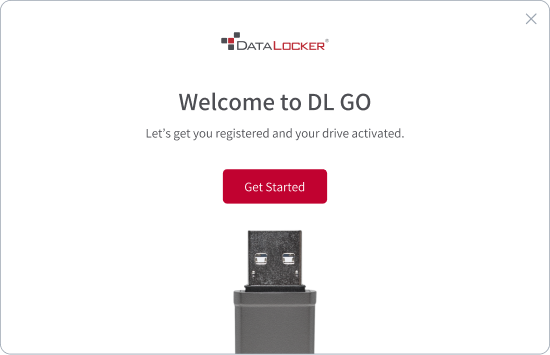
- Choose your language and accept the End User License Agreement. Click Continue.

- If you have a token or URL, click Enter Token.
- If you don’t, click Get a Token. This will take you to MySafeConsole where you can quickly create a free account.
- You can sign up with your Gmail or Apple login, or create a new account with your email.
- If you sign up with Gmail or Apple, you’ll get a verification code by email. Copy the code and paste it into MySafeConsole to continue.
- Answer a few quick questions to finish your setup, then click Next.
- A token will be generated on the MySafeConsole screen. Copy this token, return to the device activation screen, and click Enter Token.
- Need help? Watch our short video on how to activate your DL GO.
About Activation Tokens:
- A token links your device to a management system.
- If this is your personal device, click I Need a Token and follow the steps to sign up.
- If your IT admin provided this device, use the token or URL they gave you.
- Token: A 6-digit code (e.g., 123456)
- URL: Ends with ".safeconsolecloud.com" (e.g., yourcompany.safeconsolecloud.com)
Don't Want Management?
- Click Don’t Manage My Device.
WARNING: You won’t get password reset options or important security updates.
- Enter your token or URL and click Activate Device.
- Create a strong device password. Click Set Device Password.


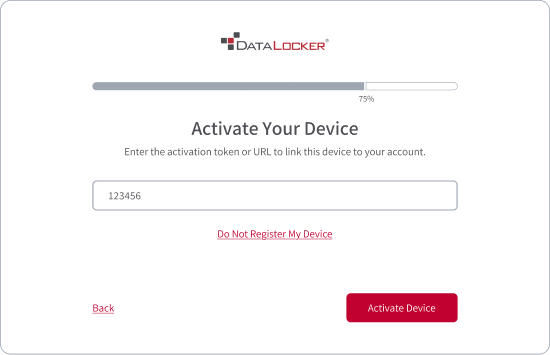

You’re done! Your DL GO is ready to use.
Using the DL GO
- Plug in your secure DL GO device:
- Wait for up to 30 seconds
- No need to restart your computer
- Open Finder and click DATALOCKER under Locations.
- After you have unlocked your DL GO, your secure storage will mount/connect and become accessible.
- You can move your important files to the drive named ENCRYPTED, and they will be automatically encrypted.
- DL GO locks when you unplug it. Click the lock button in the control panel or fully power off the host. The device remains unlocked during computer sleep or after a user logs out.
- Plug in your DL GO device.
- Open Finder and click DATALOCKER under Locations.
- The setup window opens. Click Get Started.
- Choose your language and accept the End User License Agreement. Click Continue.
- If you have a token or URL, click Enter Token.
- If you don’t, click Get a Token. This will take you to MySafeConsole where you can quickly create a free account.
- You can sign up with your Gmail or Apple login, or create a new account with your email.
- If you sign up with Gmail or Apple, you’ll get a verification code by email. Copy the code and paste it into MySafeConsole to continue.
- Answer a few quick questions to finish your setup, then click Next.
- A token will be generated on the MySafeConsole screen. Copy this token, return to the device activation screen, and click Enter Token.
- Need help? Watch our short video on how to activate your DL GO.
About Activation Tokens:
- A token links your device to a management system.
- If this is your personal device, click I Need a Token and follow the steps to sign up.
- If your IT admin provided this device, use the token or URL they gave you.
- Token: A 6-digit code (e.g., 123456)
- URL: Ends with ".safeconsolecloud.com" (e.g., yourcompany.safeconsolecloud.com)
Don't Want Management?
- Click Don’t Manage My Device.
WARNING: You won’t get password reset options or important security updates.
- Enter your token or URL and click Activate Device.
- Create a strong device password. Click Set Device Password.
You’re done! Your DL GO is ready to use.
Using the DL GO
- Plug in your secure DL GO device:
- Wait for up to 30 seconds
- No need to restart your computer
- Open Finder and click DATALOCKER under Locations.
- After you have unlocked your DL GO, your secure storage will mount/connect and become accessible.
- You can move your important files to the drive named ENCRYPTED, and they will be automatically encrypted.
- DL GO locks when you unplug it. Click the lock button in the control panel or fully power off the host. The device remains unlocked during computer sleep or after a user logs out.